New in 1.1: undo for everything, previews, site rules →

Your tabs, organized
as you browse.

TabFlow Agent stops duplicate tabs, groups related tabs by topic, and finds any open, closed or archived tab from one shortcut. It runs on your device and never closes anything you can't get back.

Free and open source · No account · Also works in Edge, Brave and other Chromium browsers via the Chrome Web Store

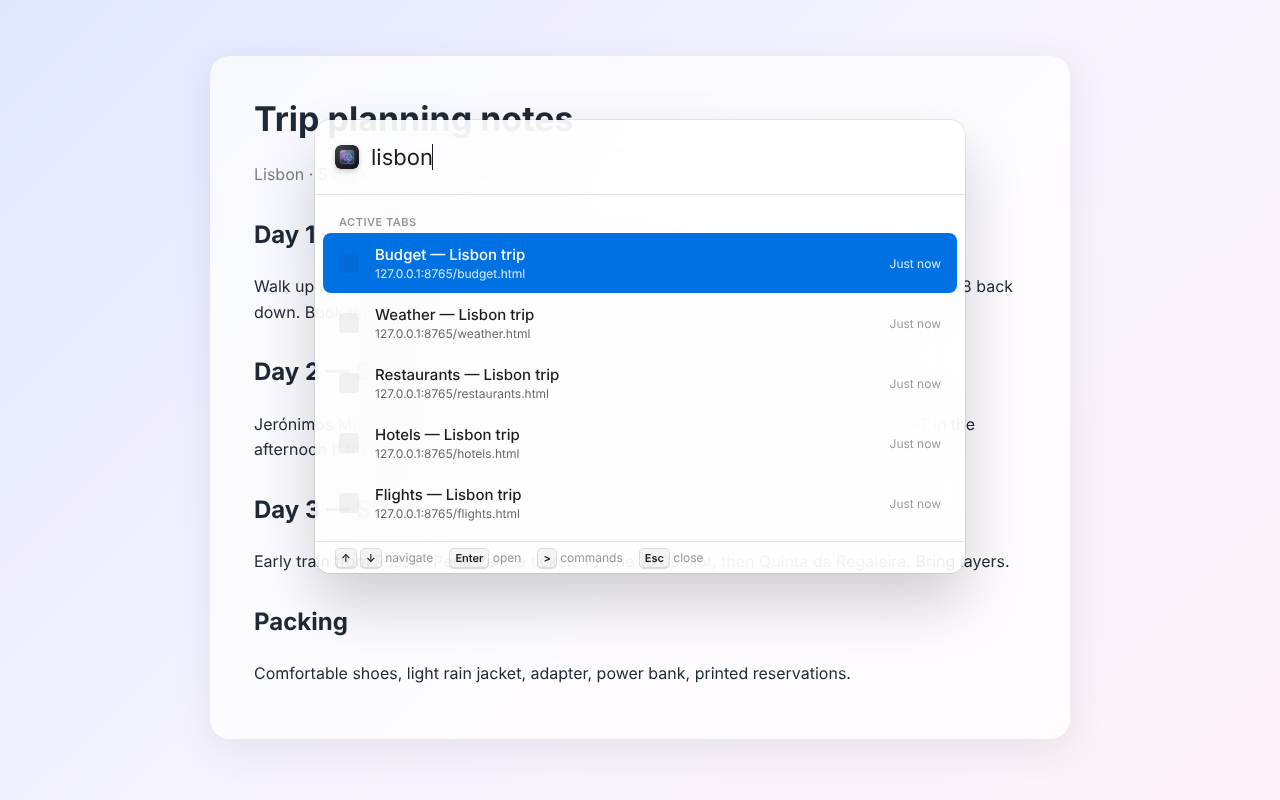
The TabFlow command palette over a web page, searching open, recently closed and archived tabs.

No more duplicates

Already open? You're switched to it.

Open a page you already have open and TabFlow takes you to the existing tab instead of adding another one. A notice with Undo appears, so you stay in control.

  • Only newly opened tabs are affected; browsing inside a tab is never interrupted.
  • Different pages on the same site stay separate, unless you mark the site as one tab only.
  • "Close Duplicate Tabs" shows exactly which tabs will close first, and archives them.
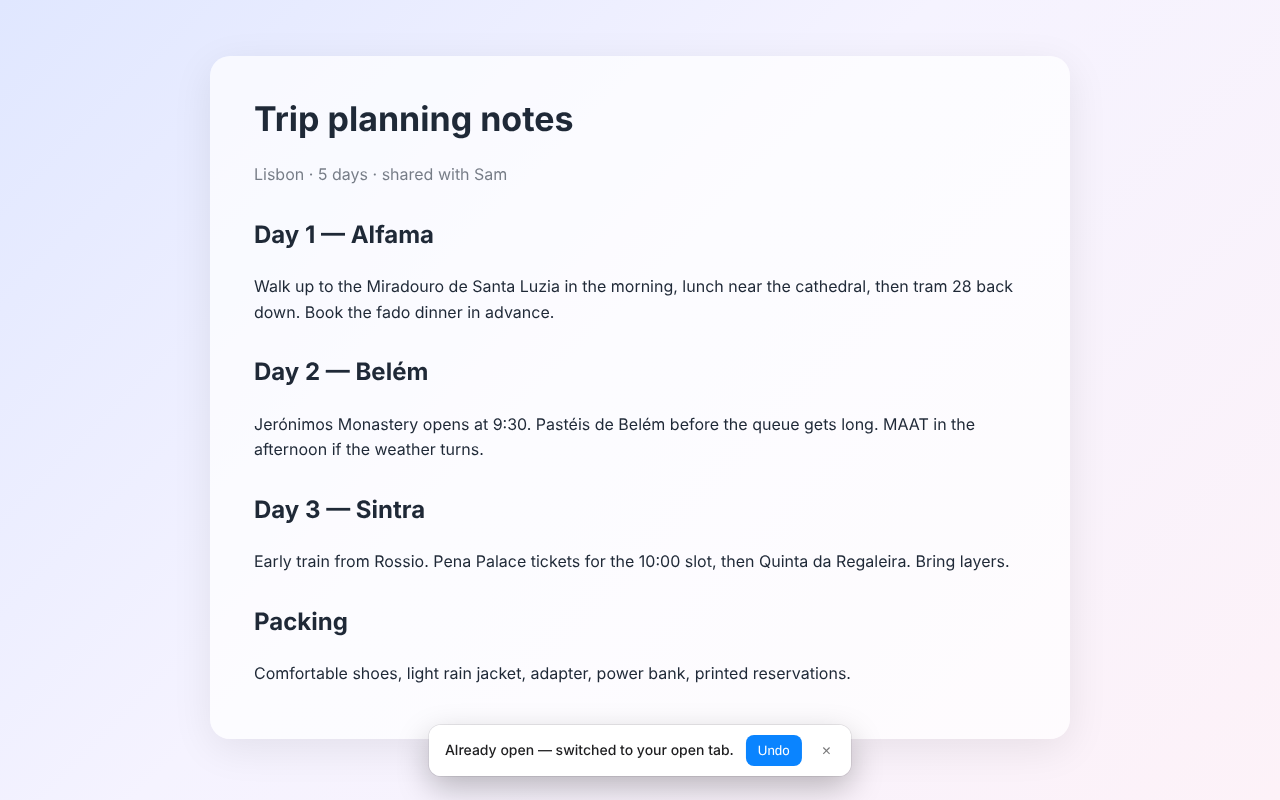
A notice reading 'Already open — switched to your open tab' with an Undo button.

Tabs that organize themselves

See the groups before anything changes.

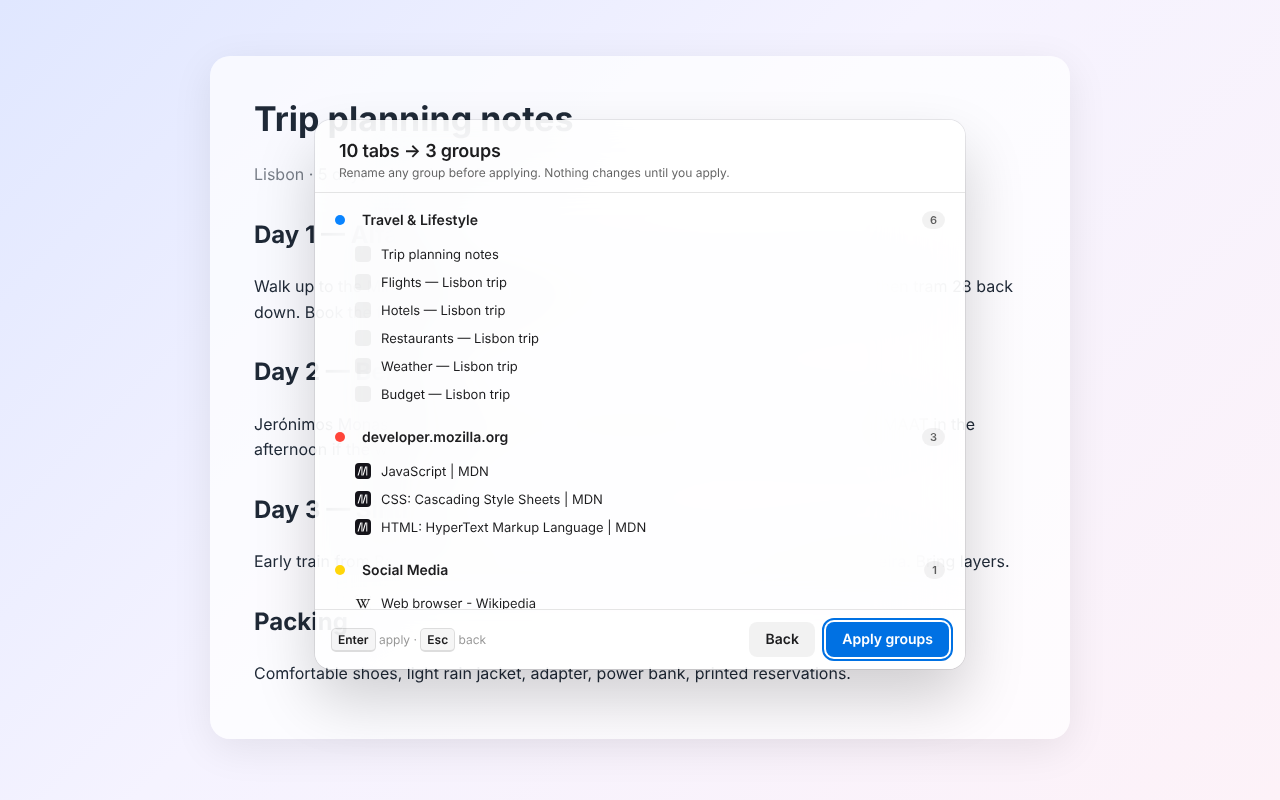
"Organize All Tabs" proposes tab groups by topic, like Travel, Development or News. Rename any group, then apply. Nothing moves until you say so.

  • New tabs you open later join a matching group automatically (you can turn this off).
  • "Organize Ungrouped Tabs" leaves the groups you made yourself alone.
  • Pull tabs from every window into one with "Consolidate All Windows".
A preview listing 10 tabs sorted into 3 proposed groups, with Back and Apply groups buttons.

One shortcut for everything

Find any tab. Run any command.

Press Ctrl+Shift+Space (⌘+Shift+Space on Mac) or click the toolbar icon to search every open, recently closed and archived tab. Type > for commands.

  • Type a few words in any order: "invoice march" finds "March Invoice – Gmail". Titles and addresses both count.
  • Fully keyboard driven, in light or dark mode.
  • The toolbar icon shows your tab count at a glance.
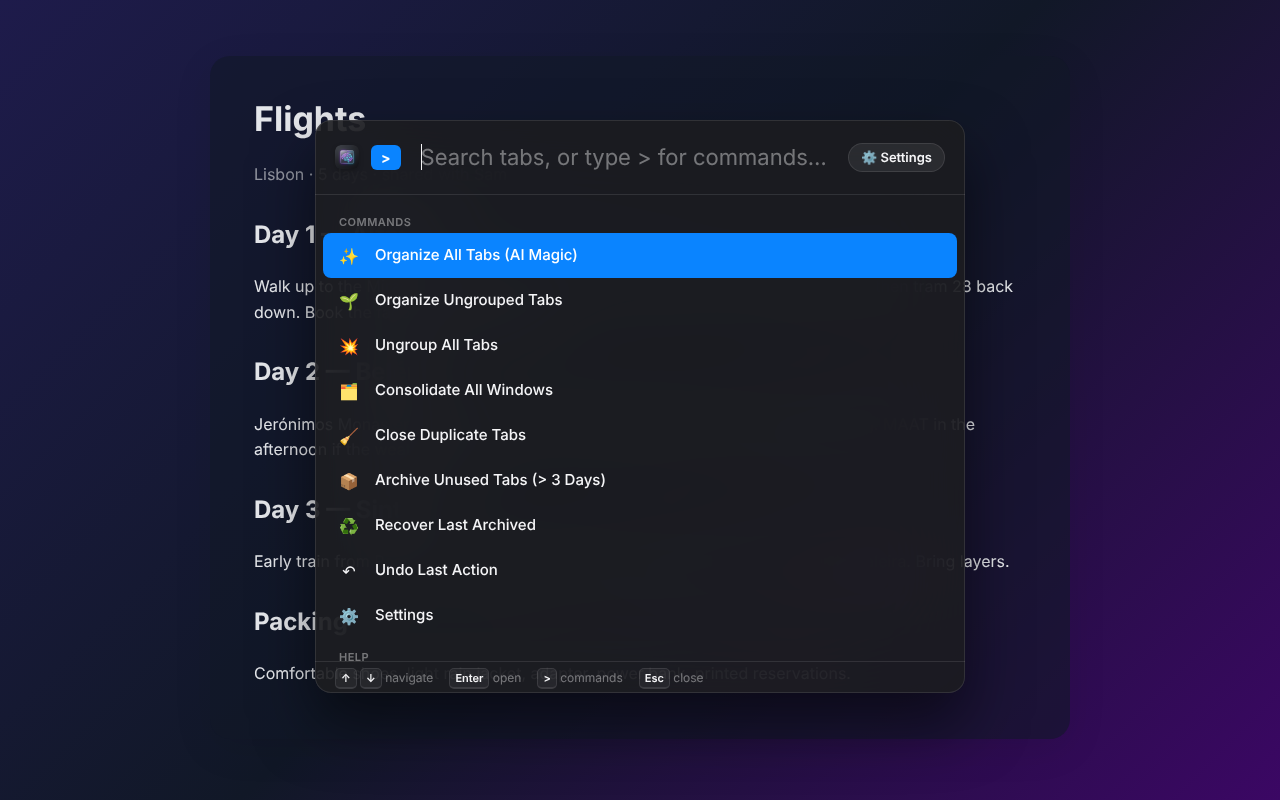
The command palette in dark mode listing commands such as Organize All Tabs and Close Duplicate Tabs.

Built so you never lose a tab

Undo anything

Every change TabFlow makes can be undone: from the notice, from the top of the palette, or with Alt+Shift+U.

Archive, don't lose

Tabs you haven't touched in a few days (you choose how many) can be tidied away by hand, or automatically every hour if you turn it on. They stay searchable and restorable for 90 days.

Your rules

List sites TabFlow must never close, and sites where you only ever want one tab, like your inbox or localhost.

Guided first run

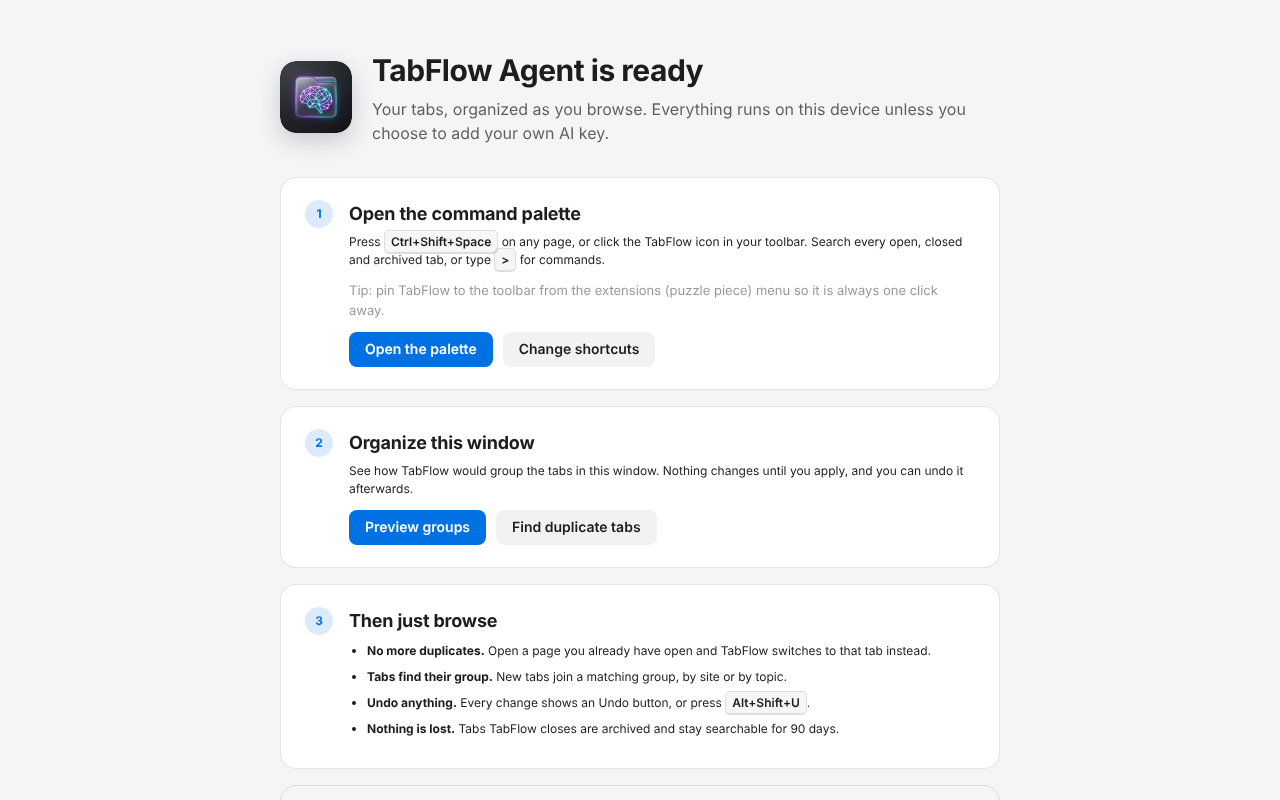
A welcome page shows your shortcut, helps you pick another if it's taken, and organizes your first window with you.

Backup & restore

Export your open tabs and archive to a file, and import it on another machine.

Activity log

See every decision TabFlow made in the last 7 days, and why.

Private by default

Your tabs stay on your device.

Grouping and duplicate detection run in your browser with a small open-source AI model (about 25 MB, downloaded once and cached). No account, no tracking, no data collected by us.

Want sharper group names? Optionally bring your own AI key. Tab titles and addresses then go to that provider only, and only for the features you use.

Read the privacy policy →

The TabFlow welcome page showing the shortcut and an Organize this window step.

Optional

Bring your own AI key

TabFlow works fully without one. Add a key from a provider you already use and it takes over the parts it's good at: smarter group names, and judging whether two different pages on the same site belong in one tab. You pay that provider directly for the tokens you use; TabFlow never sees or resells them.

  1. 1

    Open Settings

    Press Ctrl+Shift+Space, type >, choose Settings.

  2. 2

    Paste your key

    TabFlow recognizes the provider from the key and fills in its endpoint and a fast default model.

  3. 3

    Optionally split engines

    Use one model for grouping and a cheaper, faster one for duplicates, or any OpenAI-compatible endpoint.

ProviderKey starts withUsed forDefault model
Claude (Anthropic)sk-ant-Grouping & duplicatesclaude-haiku-5-5
OpenAIsk-Grouping & duplicatesgpt-4.1-mini
Gemini (Google)AIza or AQGrouping & duplicatesgemini-3.6-flash
Jev (TypeSafe)apikey_Duplicates (fast classifier)jev-latest
Any OpenAI-compatible APIanythingGrouping & duplicatesEnter Base URL and model under split engines (e.g. Groq)

Architecture & FAQs

Frequently Asked Questions

How is tab grouping done under the hood?

TabFlow supports two intelligent grouping modes:

  • Local on-device AI (default): Runs a quantized all-MiniLM-L6-v2 text embedding model in WebAssembly via ONNX inside the browser service worker. It converts tab titles and domains into 384-dimensional vectors, performs agglomerative cosine clustering with domain weighting, and assigns category names using zero-shot semantic matching. 100% of your data stays on your machine.
  • Cognitive Engine (optional API key): When you provide your own API key (Claude, OpenAI, Gemini, or any OpenAI-compatible API), a generative LLM generates highly contextual, bespoke group names and topic clusters. If the remote call times out (15 s) or fails, it automatically falls back to the on-device model.

In all cases, TabFlow generates a preview plan first so you can inspect and rename groups before anything changes in your browser.

Can I connect my own custom AI API Key (BYOK)?

Yes, absolutely! TabFlow has full native support for Bring Your Own Key (BYOK) with zero subscription fees and zero markup:

  • Anthropic Claude: (sk-ant-) defaults to claude-haiku-5-5.
  • OpenAI: (sk-) defaults to gpt-4.1-mini (or GPT-4o, o3-mini).
  • Google Gemini: (AIza or AQ) defaults to gemini-3.6-flash.
  • TypeSafe Jev: (apikey_) ultra-fast classifier for duplicate tab decisions.
  • Any OpenAI-Compatible API: Use custom base URLs and model names (e.g. Groq, Together, DeepSeek, or local proxies).

You can also enable Split Engines in Settings to use one model for grouping and a separate fast model for duplicate classification.

Where is my data stored, and who has access to it?

All data is stored strictly on your local computer:

  • IndexedDB (Dexie.js): Stores your 90-day archive of closed tabs and a 7-day activity log. Records older than 90 days are automatically purged.
  • chrome.storage.local: Stores your extension settings, site rules, and API keys.
  • chrome.storage.session: Stores undo history and short-lived decision caches, wiped automatically whenever the browser closes.

There is zero telemetry, zero analytics, no central servers, and no user accounts. Nobody—including the developers—can see your browsing data.

How much disk and cache space will it use?

Very little:

  • On-device AI model: ~25 MB total. Downloaded once on first run from Hugging Face and cached locally in the browser's Cache Storage.
  • IndexedDB database: Typically under 1 MB to 2 MB even with hundreds of archived tabs.
  • Memory (RAM): The extension runs as a Manifest V3 background service worker that goes dormant when you are not actively navigating or executing commands.
Will it slow down web pages or my browsing?

No. TabFlow is engineered for zero page overhead:

  • It does not inject scripts or styles into ordinary web pages.
  • The command palette is an isolated <iframe> that only loads into memory when you press the shortcut.
  • Duplicate tab detection listens to webNavigation.onBeforeNavigate asynchronously for newly opened tabs only. Browsing inside an existing tab or clicking internal page links has zero delay.
How does duplicate tab detection work without breaking normal browsing?

When you open a new tab, TabFlow checks whether the target address matches a tab already open in your browser. If it is an identical match, TabFlow switches you to the existing tab and shows an immediate on-screen notice with an Undo button (or Alt+Shift+U).

Navigating between pages inside an active tab is never interrupted, and site rules let you specify domains that should never be closed.

What happens when tabs are auto-archived? Are they lost?

Never. TabFlow follows a strict safety rule: never close anything you can't get back.

Auto-archiving is completely optional and disabled by default. When enabled, tabs you haven't opened in your selected number of days (e.g. 3 days) are saved to your local IndexedDB archive. They remain searchable in the command palette and restorable with one click for 90 days.

Shortcuts & commands

Open the paletteCtrl+Shift+Space · ⌘+Shift+Space on Mac
Undo the last actionAlt+Shift+U
Show commandsType > in the palette
OrganizeOrganize All Tabs · Organize Ungrouped Tabs · Ungroup All Tabs · Consolidate All Windows
Clean upClose Duplicate Tabs · Archive Unused Tabs · Recover Last Archived
MoreExport / Import Backup · Settings · Welcome, Tips & Shortcuts

Shortcuts can be changed in Settings → Toolbar & Shortcuts.

Give your tabs some flow.

Free · Open source (MIT) · Edge Add-ons listing coming soon